

Table of Contents
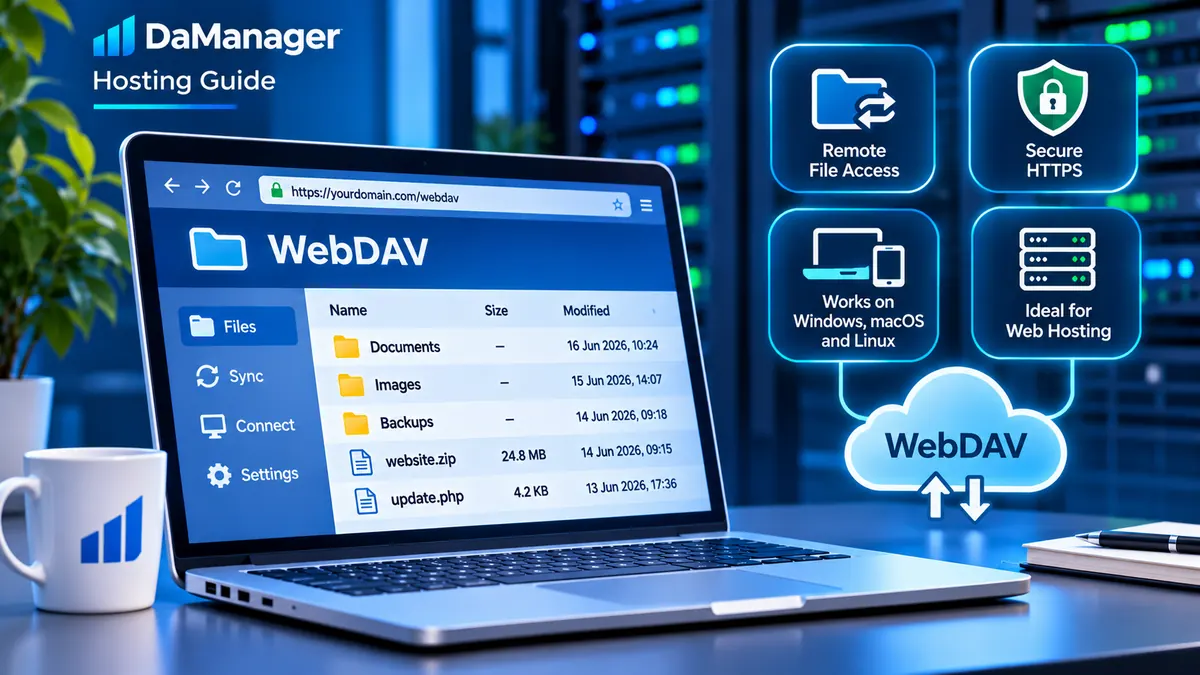
WebDAV makes it possible to manage files stored on a remote web server through an HTTP-based connection. Depending on the server and client, you can browse folders, upload and download files, rename or move resources, and work with shared documents without relying on a traditional FTP client. This guide explains what WebDAV does, how it differs from FTP and SFTP, what your hosting account needs, and how to connect from Windows, macOS and Linux.
What Is WebDAV?
WebDAV stands for Web Distributed Authoring and Versioning. It is a set of extensions to HTTP that lets clients author and manage resources on a web server. In practical terms, it can make a remote directory behave much like a network folder, although the exact experience depends on the operating system, client software and server configuration.
WebDAV adds methods such as PROPFIND for retrieving resource properties, PROPPATCH for changing properties, MKCOL for creating collections (folders), and COPY and MOVE for managing resources. It also defines locking mechanisms that can help coordinate edits. The base WebDAV protocol does not itself provide full document version control; versioning is addressed by separate extensions and application features.
The core specification is documented in IETF RFC 4918.
How Does WebDAV Work?
A WebDAV client sends HTTP requests to a server endpoint configured to handle WebDAV methods. The server authenticates the user, checks permissions for the requested directory or file, and returns the requested resource or an appropriate HTTP response. Connections normally use HTTPS so credentials and file contents are encrypted in transit.
A WebDAV address often looks like https://example.com/webdav/ or a provider-specific URL. Do not assume that your website homepage is the WebDAV address. Your hosting provider or server administrator should confirm the correct endpoint, permitted directory, authentication method and supported features.
WebDAV vs FTP vs SFTP
All three options can transfer files, but they use different protocols and are not interchangeable.
| Protocol | How it works | Typical use | Important point |
|---|---|---|---|
| WebDAV | HTTP extensions, usually over HTTPS | Remote folder access, resource management and collaborative authoring | Supports properties and optional locking; server and client support vary |
| FTP | File Transfer Protocol | Basic file transfers with an FTP client | Plain FTP does not encrypt credentials or data |
| FTPS | FTP secured with TLS | Encrypted FTP transfers | Still uses FTP and its connection/port model |
| SFTP | SSH File Transfer Protocol | Secure file transfer and file operations over SSH | It is not FTP over TLS; it is a separate protocol |
Choose WebDAV when your workflow benefits from HTTP-based remote folder access and the server supports the required methods. Choose SFTP when your host provides SSH access and you need a widely supported secure file-transfer workflow. Use FTPS where your provider specifically offers it and your client is configured for TLS.
Advantages and Limitations of WebDAV
Advantages
- Remote file access: browse and manage permitted server files from compatible desktop applications.
- HTTP and HTTPS transport: WebDAV can use familiar web ports, which may simplify connectivity in some networks.
- Resource management: supported methods allow clients to create collections and copy, move or rename resources.
- Locking support: locks can reduce conflicting edits when both the server and client implement them correctly.
- Application integration: some document editors, file managers and collaboration tools can connect directly to WebDAV resources.
Limitations
- WebDAV is not enabled on every hosting plan or server.
- Client compatibility and supported methods differ, so some applications may not work with a particular server.
- Network-drive performance can be slower than local storage, especially with many small files or high latency.
- Locking is not a substitute for backups, revision history or a proper document-management system.
- Incorrect permissions or an exposed WebDAV directory can create a serious security risk.
What You Need Before Setting Up WebDAV
Before changing server settings or connecting a client, confirm the following with your hosting provider or server administrator:
- WebDAV is supported and enabled for your hosting account or virtual host.
- You have the correct HTTPS endpoint and the directory you are allowed to access.
- A dedicated WebDAV account or suitably restricted credentials have been created.
- The server has the required WebDAV modules and methods enabled.
- The directory permissions allow only the intended users to read, create, update or delete files.
- You have a current backup before making changes to server configuration or website files.
On shared hosting, server modules and virtual-host settings are normally controlled by the provider. Do not assume that you can enable WebDAV yourself through a file-manager setting or an .htaccess file.
How to Enable WebDAV on Apache
Apache provides WebDAV through modules including mod_dav and mod_dav_fs. These modules must be installed and enabled by an administrator. The Apache documentation explains the module requirements and configuration directives in its mod_dav reference.
A typical administrator workflow is:
- Confirm that the required Apache WebDAV modules are installed and loaded.
- Choose a dedicated directory for WebDAV access. Avoid exposing the website document root or sensitive application directories unnecessarily.
- Configure WebDAV for the relevant virtual host or directory context using the server configuration. The
Dav Ondirective is used in the appropriate Apache configuration context; it is not a generic substitute for enabling the modules. - Configure authentication and authorisation so only approved users can access the directory.
- Use HTTPS, validate directory permissions and test the supported WebDAV methods with a client.
- Review the Apache error log if requests fail, then test again after each configuration change.
Exact directives and authentication configuration depend on the Apache version and server environment. A shared-hosting customer should ask the provider to enable and configure the service rather than copying privileged server directives into .htaccess.
WebDAV on Nginx: Supported Methods and Limitations
Nginx’s standard ngx_http_dav_module is not enabled by default in every build. The official Nginx DAV module documentation lists its supported methods, including PUT, DELETE, MKCOL, COPY and MOVE. It does not implement every method in the full WebDAV specification. Some clients expect additional methods, such as PROPFIND, so an extension module or another implementation may be required.
An administrator should verify the Nginx build and modules, configure a dedicated location, apply authentication and access controls, and test the exact client operations that users need. Do not assume that a configuration accepting file uploads is a complete WebDAV service.
Using WebDAV with cPanel Hosting
cPanel is a hosting control panel, not a guarantee that WebDAV is available. Whether you can use WebDAV depends on the hosting provider’s server configuration, enabled services and account permissions. Check the provider’s documentation or contact support before attempting to connect.
If WebDAV is not offered, cPanel File Manager or SFTP (where SSH access is available) may be more suitable alternatives. You can also read our guide to managing scheduled tasks with cPanel and SSH for another example of how hosting access can vary by plan.
How to Connect to WebDAV on Windows
Windows can connect to compatible WebDAV locations through File Explorer, although availability and behaviour can vary by Windows version, network policy and server configuration.
- Obtain the exact HTTPS WebDAV address and credentials from your provider or administrator.
- Open File Explorer and select This PC.
- Choose Map network drive or the option to add a network location, depending on your Windows version.
- Enter the WebDAV address when prompted. Use the endpoint supplied by your host, not an assumed URL.
- Complete the sign-in prompt using the authorised account and test by opening a permitted folder.
If Windows cannot connect, check that the URL is correct, the server certificate is trusted, the WebClient service and relevant Windows policies permit the connection, and the server supports the methods expected by the Windows client. Avoid weakening system security settings simply to force a connection.
Connecting from macOS
- Open Finder.
- Choose Go and then Connect to Server.
- Enter the HTTPS WebDAV address supplied by your hosting provider.
- Select Connect and enter your authorised username and password when prompted.
- Confirm that the mounted location shows only the files and folders you are permitted to access.
If the connection fails, check the server address, certificate validity, credentials and directory permissions. Some macOS releases or third-party clients may behave differently, so consult the documentation for the version and application you use.
Connecting from Linux
Many Linux desktop file managers support WebDAV through a network-location feature. In GNOME Files, for example, a user can enter a WebDAV address in the location or network connection interface. The exact menu labels depend on the desktop environment.
For a command-line mount, some distributions provide davfs2. Install it using your distribution’s trusted package manager, follow its documentation for credentials and mount permissions, and avoid storing passwords in world-readable files. A desktop file manager or dedicated WebDAV client may be easier for occasional access.
WebDAV Security Best Practices
- Use HTTPS only: ensure the certificate is valid and never send credentials over an unencrypted HTTP connection.
- Use dedicated credentials: avoid sharing administrator or primary hosting-account passwords. Use unique credentials with the minimum permissions required.
- Restrict directory access: expose only the directory users need, and prevent access to configuration files, backups and application secrets.
- Limit network access where practical: use IP restrictions, VPN access or other controls supported by your hosting environment.
- Review permissions and accounts: remove access when it is no longer required and review logs for unexpected activity.
- Keep software updated: patch the operating system, web server, WebDAV implementation and client software.
- Maintain independent backups: WebDAV access can allow files to be changed or deleted, so keep tested backups outside the writable share.
- Test locking and recovery: do not rely on locking unless your actual server and clients support it consistently.
Common WebDAV Errors and How to Troubleshoot Them
| Symptom or response | Possible cause | What to check |
|---|---|---|
| 401 Unauthorised | Missing or incorrect credentials | Confirm the username, password and authentication method with the provider. |
| 403 Forbidden | The account lacks permission or access is restricted | Ask the administrator to check directory ownership, permissions and access rules. |
| 404 Not Found | Incorrect endpoint or WebDAV location | Verify the exact URL and path supplied by the host. |
| 405 Method Not Allowed | The server does not support the method requested by the client | Check the enabled modules and whether the implementation supports the required WebDAV methods. |
| 409 Conflict | A requested operation conflicts with the current resource or directory state | Check parent folders, locks and the target resource before retrying. |
| Connection or certificate error | DNS, firewall, TLS certificate or network issue | Check the hostname, HTTPS certificate, network access and server availability. |
| Upload fails or times out | File-size limits, timeouts, storage limits or write permissions | Check hosting limits, available disk space, server logs and write access. |
Record the exact error code, time of the failed request and client application before contacting support. Server logs can help an administrator distinguish an authentication problem from a missing method or a permission issue. If your website itself is returning server errors, our guide to troubleshooting a 500 Internal Server Error explains how to begin checking hosting logs and configuration.
Is WebDAV Right for Your Hosting Environment?
WebDAV can be useful when you need a familiar way to access remote files, when your applications support its methods, and when your hosting provider can configure it securely. It is not automatically the best choice for every website or team.
For occasional website file transfers, SFTP may be simpler and more widely supported. For shared document collaboration, a dedicated document platform may provide better version history, access controls and recovery features. For WebDAV, confirm compatibility, permissions, performance and backup arrangements before making it part of a production workflow.
Frequently Asked Questions
Is WebDAV secure?
WebDAV can be used securely when it is served over HTTPS, protected with strong authentication and restricted to the correct directories and users. The protocol itself does not remove the need for secure server configuration, access controls and backups.
Does WebDAV replace FTP?
Not in every situation. WebDAV offers HTTP-based resource management and can integrate with file managers, while FTP, FTPS and SFTP have different compatibility and security characteristics. Choose the protocol supported by your host and required by your workflow.
Does every shared hosting plan support WebDAV?
No. Support depends on the provider, server software, configuration and account permissions. Ask your host before planning to use it.
Can WebDAV be used as a network drive?
Yes, compatible operating systems and applications can mount or connect to WebDAV resources. The available features and reliability depend on the client, server and network.
Does WebDAV provide file version history?
The base WebDAV protocol does not provide full version control. Some separate extensions and applications add versioning, but you should not assume that a WebDAV share keeps previous copies of edited files.
What should I use if my host does not support WebDAV?
Consider SFTP if SSH access is available, or use your hosting control panel’s file manager. Ask your provider which secure file-transfer method is supported by your plan.
Explore Shared Hosting Options
If you are choosing a hosting environment for a website, compare the available account features, file access methods, support and security controls before you commit. See DaManager Shared Hosting for available plans and details.