

Table of Contents
If you manage multiple websites, you already know how time-consuming it can be to handle updates, plugins, and user accounts across separate installations. WordPress Multisite is a powerful feature that allows you to run a network of websites from a single WordPress installation. Whether you are a web developer, an agency, or a business owner with several brands, understanding WordPress multisite hosting can save you considerable time and effort. In this guide, we will walk you through everything you need to know to get your multisite network up and running.
What Is WordPress Multisite?
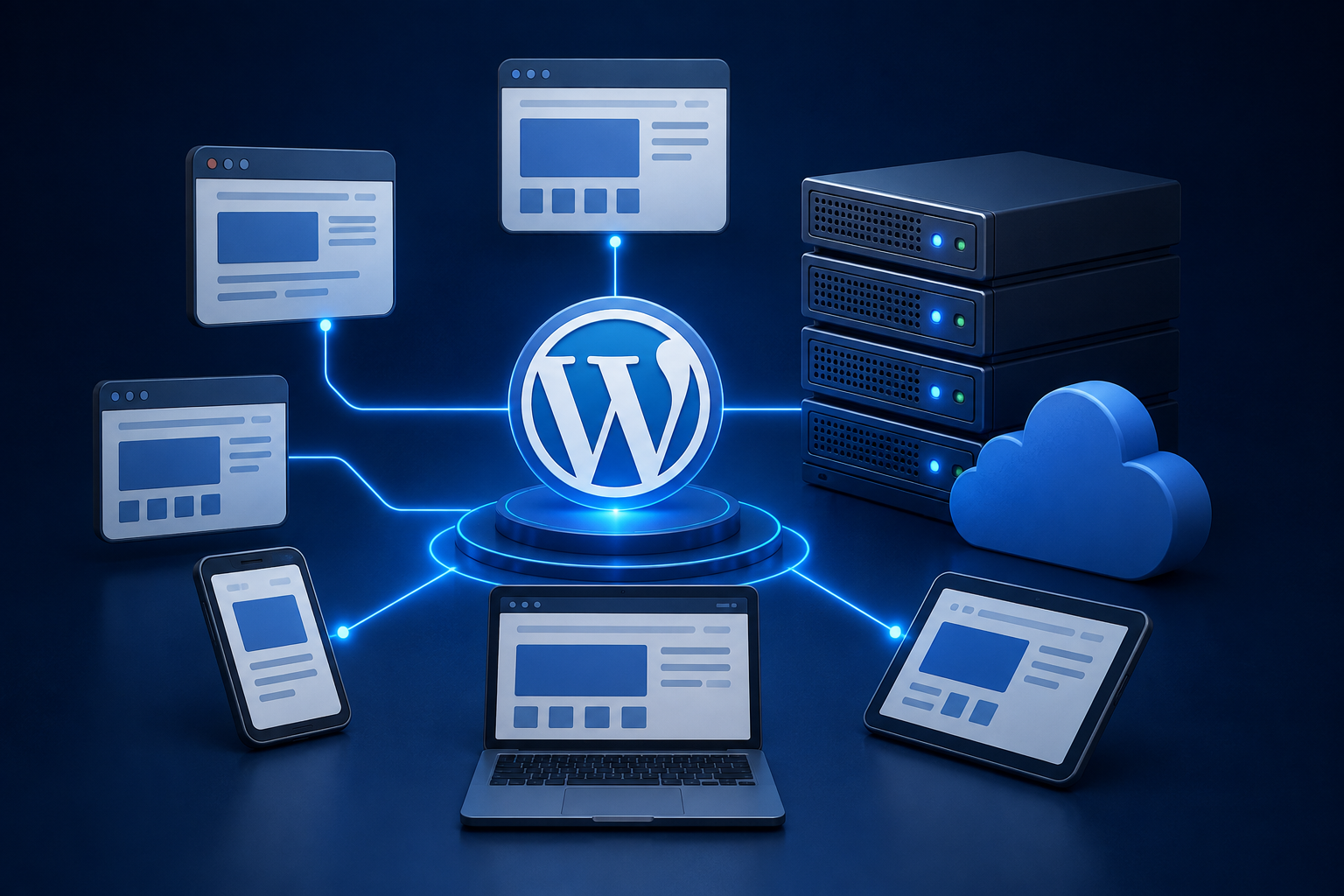
WordPress Multisite is a built-in feature of WordPress that enables you to create and manage a network of individual websites, all sharing a single WordPress codebase and database. Each site within the network can have its own content, themes, and plugins, whilst still being administered from one central dashboard.
This setup is particularly popular with universities, media companies, large organisations, and digital agencies that need to manage dozens or even hundreds of websites without the overhead of maintaining separate installations. With the right WordPress multisite hosting environment, the entire network can be scaled efficiently and kept up to date with minimal effort.
Is WordPress Multisite Right for You?
Before diving into the technical setup, it is worth considering whether a multisite network is the best solution for your needs. A multisite network works brilliantly when:
- You need to manage multiple websites with similar functionality
- You want to apply updates and security patches across all sites simultaneously
- You are running a network of blogs or microsites under one brand
- You want to offer users the ability to create their own subsites, as platforms like WordPress.com do
However, if your sites are entirely unrelated or require vastly different configurations, separate installations may be more appropriate. It is also important to note that not all plugins and themes are fully compatible with multisite, so testing is essential.
Choosing the Right WordPress Multisite Hosting
One of the most critical decisions you will make is selecting a hosting provider that supports WordPress multisite hosting properly. Not all shared hosting plans are suitable, as multisite networks can demand more server resources, particularly as the number of subsites grows.
What to Look for in a Multisite Hosting Provider
When evaluating hosting options, keep the following factors in mind:
- Server resources: Ensure the plan offers sufficient RAM, CPU, and storage to handle multiple sites simultaneously.
- Managed WordPress hosting: Managed hosting providers often include multisite support, automatic updates, and enhanced security out of the box.
- Subdomain and subdirectory support: Your host must support wildcard subdomains if you plan to use subdomain-based multisite.
- Scalability: As your network grows, you will need a host that can scale resources without significant downtime.
- Technical support: Multisite configurations can be complex, so having access to knowledgeable support is invaluable.
For further reading on choosing the right hosting environment and managing your digital assets effectively, visit the DA Manager blog for expert insights and practical advice.
How to Enable WordPress Multisite
Once you have your hosting environment ready, you can begin enabling the multisite feature. Before proceeding, ensure you have a full backup of your WordPress installation.
Step 1: Allow Multisite in wp-config.php
Access your website’s root directory via FTP or your hosting control panel’s file manager. Open the wp-config.php file and add the following line above the line that reads /* That’s all, stop editing! */:
define( 'WP_ALLOW_MULTISITE', true );
Save the file and return to your WordPress dashboard. You will now see a new option under the Tools menu labelled “Network Setup”.
Step 2: Configure the Network
Navigate to Tools > Network Setup. Here, you will be asked to choose between two URL structures for your subsites:
- Subdomains: Each site uses a subdomain, such as site1.yourdomain.co.uk. This requires wildcard subdomain support from your host.
- Subdirectories: Each site uses a subdirectory, such as yourdomain.co.uk/site1. This is generally easier to configure.
Enter your network title and administrator email address, then click “Install”. WordPress will provide you with code snippets to add to your wp-config.php and .htaccess files.
Step 3: Update Your Configuration Files
Copy the provided code and paste it into the appropriate sections of your wp-config.php and .htaccess files as instructed. Once saved, log back into your WordPress dashboard. You will now have access to the Network Admin panel, which is the central hub for managing your entire multisite network.
Managing Your Multisite Network
With your network established, you can begin adding new sites, managing users, and installing themes and plugins network-wide.
Adding New Sites
From the Network Admin dashboard, go to Sites > Add New. Fill in the site address, title, and administrator email. The new site will be created instantly and can be managed independently or through the network admin panel.
Installing Themes and Plugins
As a network administrator, you install themes and plugins at the network level. Once installed, you can choose to activate them network-wide or allow individual site administrators to activate them as needed. This centralised approach is one of the greatest advantages of WordPress multisite hosting, as it ensures consistency and simplifies maintenance.
Managing Users Across the Network
Users can be granted access to individual sites or to the entire network. The Super Admin role is unique to multisite and has full control over the network, including the ability to install plugins, add sites, and manage all users. Individual site admins have control over their own site but cannot affect the wider network.
Common Challenges and How to Overcome Them
Like any advanced WordPress configuration, multisite comes with its own set of challenges. Plugin compatibility is one of the most common issues, as some plugins are not designed to work across a multisite environment. Always test plugins in a staging environment before deploying them network-wide.
Performance can also become a concern as your network grows. Implementing a content delivery network (CDN), enabling caching at the server level, and optimising your database regularly will help maintain fast load times across all subsites.
Additionally, domain mapping, allowing each subsite to use its own custom domain, requires either a plugin or server-level configuration. Many premium WordPress multisite hosting providers offer built-in support for this feature, making it considerably easier to manage.
Final Thoughts
Setting up a WordPress multisite network is a smart solution for anyone managing multiple websites who wants to reduce administrative overhead and maintain consistency across their digital presence. By choosing a reliable WordPress multisite hosting provider, carefully configuring your network, and understanding how to manage users, themes, and plugins centrally, you can create a powerful and efficient web management system.
Whether you are launching a handful of microsites or building a network of hundreds of blogs, WordPress Multisite gives you the tools to do so without unnecessary complexity. Take the time to plan your structure carefully, invest in quality hosting, and your multisite network will serve you well for years to come.