

Table of Contents
If you have ever signed up for a web hosting account and wondered how to install WordPress, Joomla, or any other popular web application without touching a single line of code, then Softaculous is the answer you have been looking for. Whether you are a complete beginner or an experienced developer looking to save time, understanding Softaculous hosting can transform the way you manage your websites. In this guide, we will explain exactly what Softaculous is, how it works, and how you can use it to get your website up and running in just a few minutes.
What Is Softaculous?
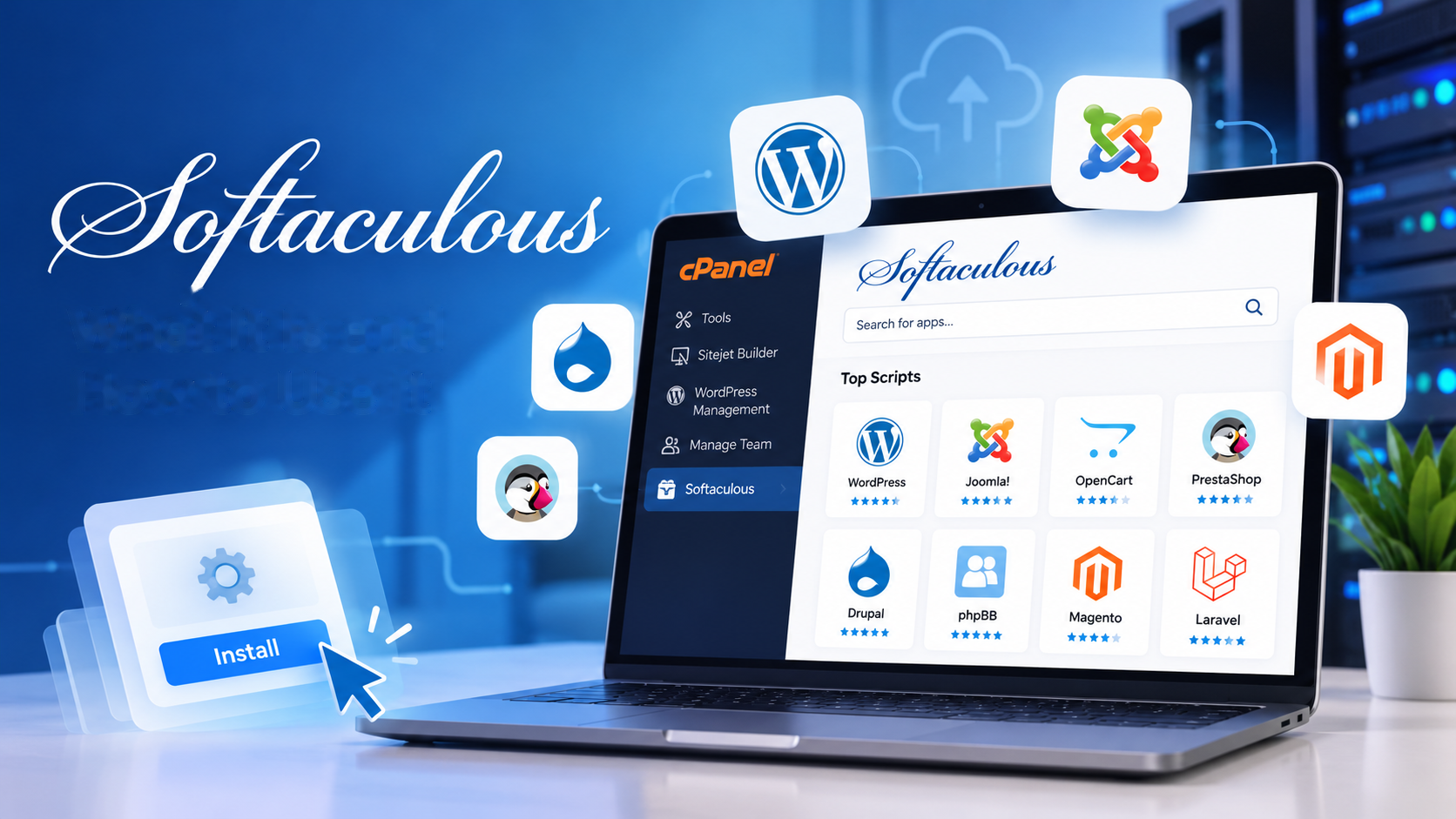
Softaculous is an auto-installer script library that is integrated into many web hosting control panels, most notably cPanel and Plesk. It allows website owners and developers to install hundreds of web applications, including content management systems, eCommerce platforms, forums, and blogging tools, with just a few clicks, without any technical knowledge required.
Launched in 2009, Softaculous has grown to become one of the most widely used auto-installers in the web hosting industry. It currently supports over 450 scripts and more than 1,100 PHP classes, making it an incredibly versatile tool for anyone managing a website. The platform is used by millions of websites across the globe and is trusted by major hosting providers as a standard feature of their hosting packages.
In the context of Softaculous hosting, the term simply refers to any hosting plan or provider that includes Softaculous as part of its control panel offering. Most shared hosting, reseller hosting, and even some VPS hosting plans include Softaculous as a built-in feature.

Why Is Softaculous So Popular?
The popularity of Softaculous comes down to one thing: simplicity. Before tools like Softaculous existed, installing a web application such as WordPress required you to manually download the software, upload it via FTP, create a database, configure settings files, and run an installation wizard. For non-technical users, this process was daunting and time-consuming.
Softaculous automates the entire process. It creates the database, configures the files, and installs the application on your behalf, all within a matter of seconds. This means that even someone with no prior experience in web development can have a fully functional website live within minutes of purchasing a hosting plan.
Key Benefits of Softaculous
- Speed: Install applications in under a minute without any manual configuration.
- Ease of use: A clean, intuitive interface makes it accessible for beginners.
- Variety: Access to hundreds of scripts covering everything from WordPress to Magento.
- Backup and restore: Create backups of your installations and restore them with ease.
- Automatic updates: Keep your applications up to date automatically to improve security.
- Staging environments: Clone your website to test changes before pushing them live.
How to Access Softaculous on Your Hosting Account
Accessing Softaculous will depend on which control panel your hosting provider uses. The most common scenario is through cPanel, which is the industry-standard hosting control panel used by the majority of shared hosting providers.
Accessing Softaculous via cPanel
To access Softaculous through cPanel, follow these steps:
- Log in to your hosting account and navigate to your cPanel dashboard.
- Scroll down until you find the Software section.
- Click on the Softaculous Apps Installer icon.
- You will be taken to the Softaculous dashboard, where you can browse and install applications.
Some hosting providers may have a direct link to Softaculous in their client area or hosting dashboard, so it is worth checking there as well if you cannot find it within cPanel.
How to Install WordPress Using Softaculous
WordPress is by far the most popular application installed through Softaculous. Here is a step-by-step guide to installing WordPress using Softaculous hosting:
Step 1: Open the WordPress Installer
Once you are inside the Softaculous dashboard, you will see a list of popular scripts on the left-hand side. Click on WordPress under the “Blogs” category, or use the search bar to find it quickly. Then click the Install Now button.
Step 2: Configure Your Installation Settings
You will now be presented with a form where you can configure your WordPress installation. The key fields to fill in include:
- Choose Protocol: Select whether you want your site to use HTTP or HTTPS (HTTPS is strongly recommended).
- Choose Domain: Select the domain name on which you want to install WordPress.
- In Directory: Leave this blank if you want WordPress installed in the root of your domain, or enter a folder name if you want it in a subdirectory.
- Site Name and Description: Enter your website’s name and a brief description.
- Admin Username and Password: Choose a secure username and a strong password for your WordPress admin account.
- Admin Email: Enter the email address associated with your admin account.
Step 3: Choose Your Theme (Optional)
Softaculous gives you the option to select a theme during installation. You can choose from a selection of free WordPress themes or skip this step and select a theme later from within the WordPress dashboard.
Step 4: Complete the Installation
Once you are satisfied with your settings, scroll down and click the Install button. Softaculous will handle the rest. Within seconds, your WordPress website will be live and ready to use. You will receive confirmation with links to your new website and your WordPress admin login page.
Managing Your Installations with Softaculous
Softaculous is not just an installer, it is a full management tool. Once you have one or more applications installed, you can manage them all from the Softaculous dashboard.
Backing Up and Restoring Installations
One of the most valuable features of Softaculous is the ability to create backups of your installations. From the dashboard, click on All Installations, find the application you want to back up, and click the backup icon. Softaculous will create a compressed backup file that you can store and restore at any time. This is particularly useful before making major changes to your website.
Updating Applications
Keeping your web applications up to date is crucial for security. Softaculous makes this easy by notifying you when updates are available and allowing you to update with a single click. You can also enable automatic updates so that your applications are always running the latest version without any manual intervention.
Cloning and Staging
If you want to test changes to your website without affecting the live version, Softaculous allows you to clone your installation to a staging environment. Once you are happy with your changes, you can push them to the live site. This is an excellent feature for developers and designers working on client websites.
Tips for Getting the Most Out of Softaculous Hosting
To make the most of your Softaculous hosting experience, keep the following tips in mind:
- Always use HTTPS when installing applications to ensure your website is secure from the outset.
- Choose strong, unique passwords for your admin accounts to reduce the risk of unauthorised access.
- Enable automatic updates to keep your applications patched and secure.
- Take regular backups before making significant changes to your website.
- Explore the full range of scripts available, you may discover tools that can enhance your website’s functionality.
For more helpful guides on managing your hosting environment, visit the DA Manager blog, where you will find a wealth of resources covering everything from domain management to website optimisation.
Conclusion
Softaculous is one of the most powerful and user-friendly tools available to website owners today. By automating the installation and management of web applications, it removes the technical barriers that once made building a website a complex and time-consuming task. Whether you are installing WordPress for the first time or managing multiple applications across several domains, Softaculous hosting provides the tools you need to work efficiently and confidently. If your current hosting plan includes Softaculous, make sure you are taking full advantage of everything it has to offer.