

Table of Contents
If your website takes more than a few seconds to load, you are almost certainly losing visitors, rankings, and revenue. Research consistently shows that users abandon pages that take longer than three seconds to appear, and search engines like Google factor page speed directly into their ranking algorithms. Running a website speed test is one of the most valuable things you can do for your online presence, yet many website owners either skip it entirely or struggle to make sense of the data once they have it. This guide walks you through everything you need to know, from choosing the right tools to understanding what the numbers actually mean.
Why Website Speed Matters More Than Ever
Website performance is no longer just a technical concern reserved for developers. It sits at the heart of user experience, search engine optimisation, and conversion rates. Google’s Core Web Vitals update made it official: page speed is a confirmed ranking factor for both desktop and mobile search results.
Slow websites also damage trust. A sluggish page signals to visitors that a business is not professional or up to date. Even a one-second delay in page load time can reduce conversions by up to 7%, according to widely cited industry data. Whether you run an e-commerce store, a blog, or a corporate website, speed directly affects your bottom line.
Choosing the Right Website Speed Test Tool
There are several excellent tools available for running a website speed test, each offering slightly different insights. Using more than one is advisable, as they measure performance from different angles.
Google PageSpeed Insights
Google PageSpeed Insights is arguably the most important tool to use because it reflects how Google itself evaluates your site. It analyses both mobile and desktop performance separately and provides a score from 0 to 100. It also reports directly on Core Web Vitals, making it essential for SEO purposes. Simply enter your URL and the tool will return a detailed breakdown of issues affecting your score.
GTmetrix
GTmetrix is a popular choice among developers and marketers alike. It provides a performance grade, load time, total page size, and the number of requests made by the page. One of its most useful features is the waterfall chart, which shows exactly how long each individual element on your page takes to load. You can also test from different server locations, which is useful if your audience is spread across multiple regions.
Pingdom Website Speed Test
Pingdom offers a straightforward interface and is particularly useful for those who are new to performance testing. It provides a performance grade alongside clear recommendations. Like GTmetrix, it allows you to choose a test location, which helps you understand how your site performs for users in different parts of the world.
WebPageTest
WebPageTest is the most advanced of the commonly used free tools. It offers granular control over test conditions, including browser type, connection speed, and geographic location. It is particularly useful for diagnosing specific technical issues and is often the tool of choice for developers carrying out in-depth audits.
How to Run a Website Speed Test
Running a basic speed test is straightforward. Visit your chosen tool, enter your website’s full URL including the https:// prefix, select your preferred test location and device type where applicable, and click the test button. Wait for the results to load, this usually takes between 15 and 60 seconds depending on the tool and your website’s complexity.
It is worth testing your homepage as well as key internal pages such as product pages, blog posts, or landing pages. Different pages often have very different performance profiles depending on the media, scripts, and third-party elements they contain.
Interpreting Your Website Speed Test Results
Once you have your results, the real work begins. Here is what the most important metrics mean and what you should be aiming for.
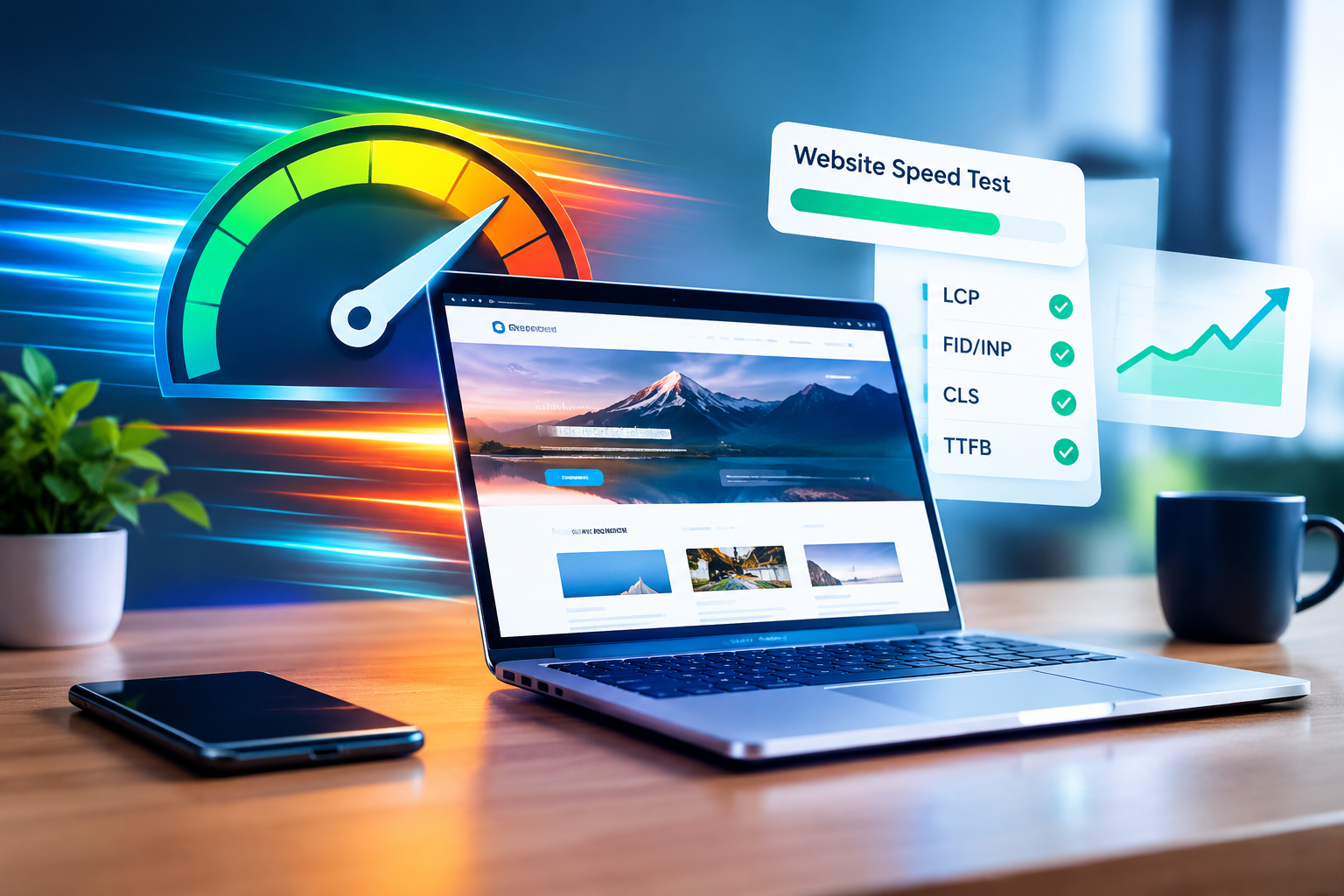
Largest Contentful Paint (LCP)
LCP measures how long it takes for the largest visible element on the page – usually a hero image or a large block of text – to fully render. Google considers a good LCP to be 2.5 seconds or less. A poor LCP is anything above 4 seconds. If your LCP is slow, the most common culprits are unoptimised images, slow server response times, and render-blocking resources.
First Input Delay (FID) and Interaction to Next Paint (INP)
FID measures the time from when a user first interacts with your page to when the browser responds. Google has since moved towards INP as the preferred metric, which measures the overall responsiveness of the page throughout a user’s visit. A good INP score is under 200 milliseconds. Poor scores are typically caused by heavy JavaScript execution.
Cumulative Layout Shift (CLS)
CLS measures visual stability, in other words, how much the page layout shifts around as it loads. A score below 0.1 is considered good. High CLS scores frustrate users and often occur when images lack defined dimensions or when ads and embeds load without reserved space.
Time to First Byte (TTFB)
TTFB measures how quickly your server begins responding to a request. A TTFB under 800 milliseconds is generally acceptable, though faster is always better. A slow TTFB often points to server-side issues, such as a poor hosting environment or inefficient database queries.
Total Page Size and Number of Requests
These two metrics give you a broad sense of how heavy your page is. Ideally, you want to keep your total page size under 2MB and minimise the number of HTTP requests. Each request adds overhead, so reducing unnecessary scripts, stylesheets, and images can make a significant difference.
Common Issues Found in Speed Tests and How to Fix Them
Understanding the results is only half the battle. Here are the most common problems identified in a website speed test and the steps you can take to address them.
Unoptimised Images
Images are frequently the biggest contributor to slow load times. Compress your images using tools like Squoosh or ShortPixel, and serve them in modern formats such as WebP. Always define image dimensions in your HTML or CSS to prevent layout shifts.
Render-Blocking Resources
JavaScript and CSS files that load before the page content can significantly delay rendering. Use the defer or async attributes on script tags, and consider inlining critical CSS to speed up the initial paint.
Lack of Caching
Browser caching allows returning visitors to load your site much faster by storing static files locally. Ensure your server is configured to set appropriate cache headers, and consider using a content delivery network (CDN) to serve assets from locations closer to your users.
Poor Hosting
Sometimes the simplest explanation is the correct one. Shared hosting plans with limited resources can throttle your server response times regardless of how well-optimised your code is. Upgrading to a managed hosting solution or a virtual private server can yield dramatic improvements.

Making Speed Testing a Regular Habit
A website speed test should not be a one-off exercise. Performance can degrade over time as you add new plugins, update themes, or publish more content. Schedule regular tests, monthly at a minimum, and keep a log of your scores so you can identify trends and catch regressions early.
For more practical guidance on improving your website’s performance and digital presence, visit the DaManager blog, where you will find a wealth of resources covering SEO, technical optimisation, and online growth strategies.
Final Thoughts
Running a website speed test and acting on the results is one of the highest-return activities available to any website owner. The tools are free, the process is straightforward, and the rewards- better rankings, improved user experience, and higher conversion rates- are tangible and measurable. Start with Google PageSpeed Insights today, work through the recommendations methodically, and make speed a core pillar of your ongoing website strategy.